 Lumidepth Player VR · Watch in VR
How to Watch VR180 Videos from Your PC or NAS on Quest (Link / Air Link) — and Add Real Depth
Short answer: Connect your Quest to your PC with Link or Air Link and open the files in a PC VR player. You can watch VR180 videos from your PC or NAS without copying them to the headset, and heavy 8K files are decoded by your PC's GPU. If you also add AI-estimated depth, near and far objects shift as you move your head, and the scene feels much more like a real space.
1. Check these first
A PC VR player assumes the following setup.
- PC: Windows 10 / 11 (64-bit)
- GPU: your PC's GPU decodes and renders the video. For AI processing on top of that, you need a recent GPU such as an NVIDIA GeForce RTX 3060 or newer
- Connection: start the Meta Quest Link app on your PC and connect the Quest by USB cable (Link) or Wi‑Fi (Air Link). Air Link tends to be more stable when the PC is wired to the router and the Quest is on a fast Wi‑Fi band such as 5 GHz
- Videos on a NAS: map the shared folder as a network drive in Windows, and it behaves like any other drive on your PC
2. Why VR180 videos can feel "flat"
A VR180 video holds left and right images seen from where the camera was. Each eye gets a different image, so it looks 3D, but when you move your head while seated, near and far objects keep the same relationship. In real life, leaning in even slightly makes near objects slide against the background, and the lack of that shift is what makes a video feel flat, like a picture on a wall.
To fix this, a player has to estimate depth for each frame and shift near and far parts as your head moves. Shifting reveals gaps behind object edges that the camera never captured, so how those gaps are filled also affects what you see.
3. Ways to watch PC or NAS VR videos on Quest
| Method | Effort | Heavy files (8K etc.) | Responds to head movement | Best for |
|---|---|---|---|---|
| Copy videos to the Quest | Copy each file; uses headset storage | Limited by the Quest's own decoder | No | A few videos, no PC needed |
| Stream from NAS or PC with a standalone Quest app | Set up the app once | Limited by the Quest's own decoder | No | Watching without turning on the PC |
| Connect via Link / Air Link and use a PC VR player | PC must be on and connected | Decoded by the PC's GPU | Depends on the player | Heavy files, or extra processing using PC power |
4. Adding depth on your PC: Lumidepth Player VR
I built Lumidepth Player VR, a PC VR player, for the third method. Here is how to use it.
- Start the Meta Quest Link app on your PC and connect your Quest with Link or Air Link
- Launch Lumidepth Player VR from your library inside the Quest
- Your PC drives and mapped NAS folders appear in the list. Select a video with the right trigger; it plays directly without copying
- Turn on "3D" in the playback bar. The first time, the AI is prepared for your PC, which can take a few minutes (it starts instantly after that)
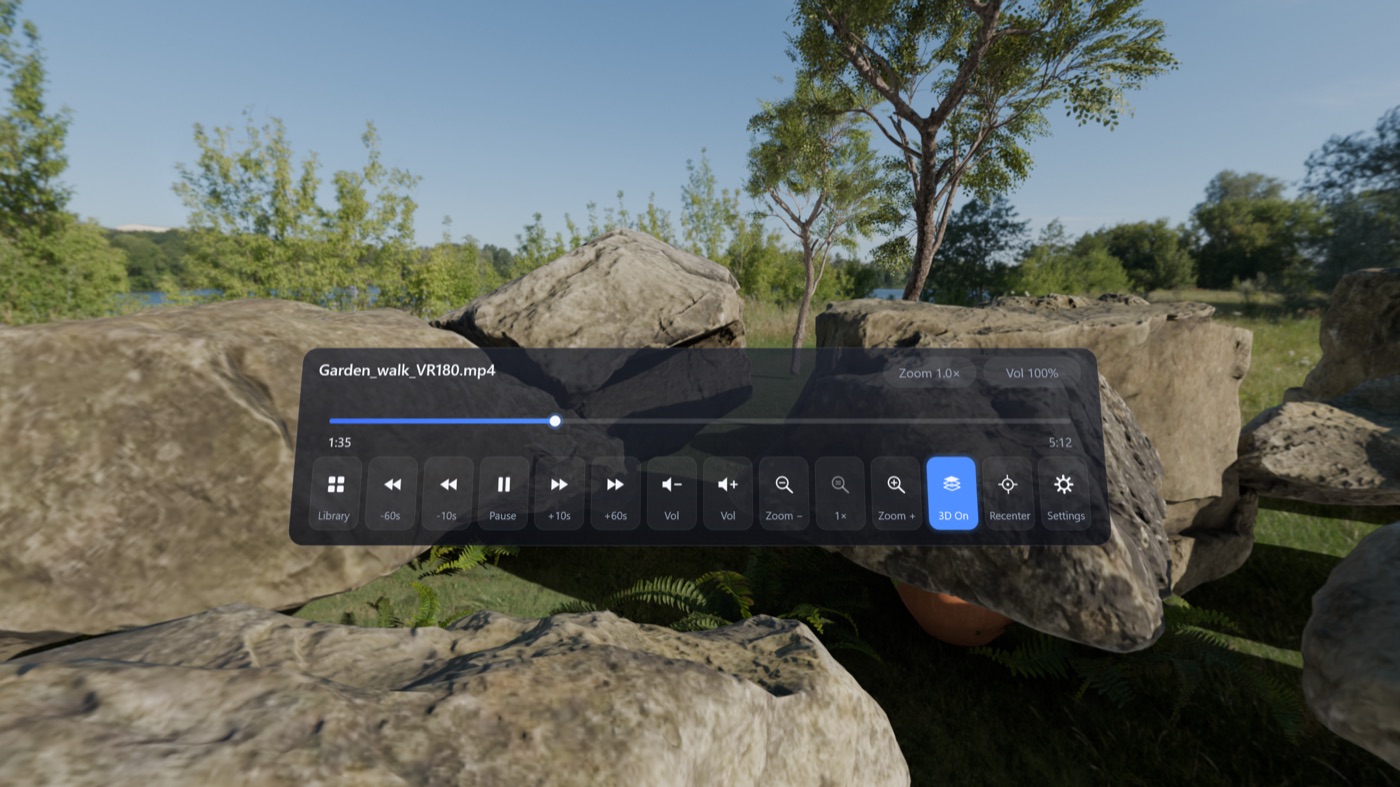
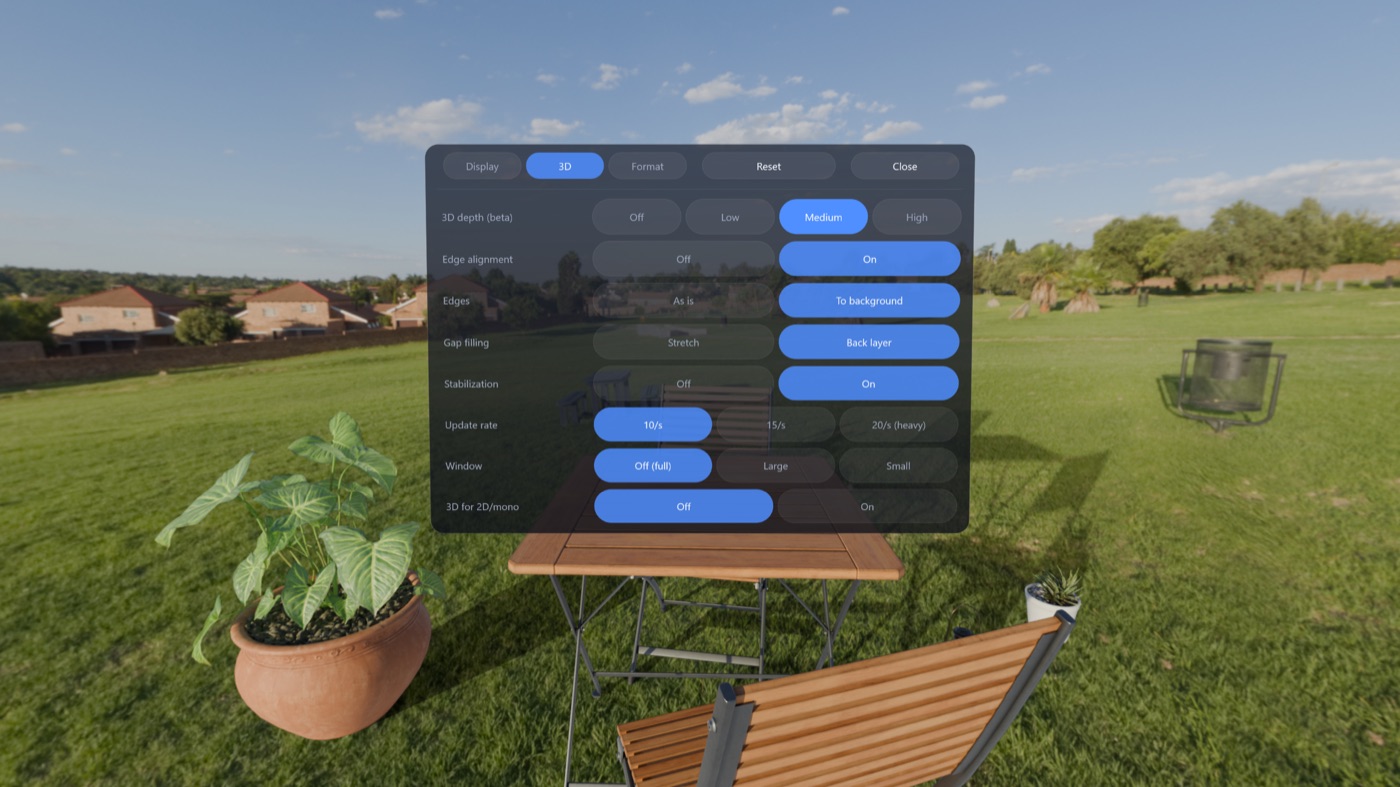
The depth effect works best with side-by-side VR180 videos, and you can add depth to regular 2D videos as well. In the 3D settings you can choose the strength, how edges are aligned, how gaps are filled (stretch or background layer), and whether motion is stabilized.
Supported files are MP4, MKV, MOV and WebM with H.265 (HEVC), H.264 (up to 4K), AV1, VP9 and ProRes at 8 to 12 bits. HDR (HDR10, HLG) is shown as SDR. VR180, VR360 or flat, and side-by-side or top-bottom layouts are normally detected from the file name and aspect ratio. Videos and depth processing stay on your PC and are never sent anywhere. No account is required.
Requirements: Windows 10 / 11 (64-bit) and an NVIDIA GeForce RTX 3060 or newer (RTX 30 / 40 / 50 series). It does not run on AMD or Intel GPUs.
5. Troubleshooting
"Meta Quest is not connected to the PC"
Connect the Quest with Link or Air Link, then open the app again. Also check that the Meta Quest Link app is running on your PC.
My NAS videos don't show up
Map the shared folder as a network drive in Windows. It will then appear in the list as a drive.
The image looks doubled or split top and bottom
The video format was detected incorrectly. In the Format settings, choose the projection (180°, 360°, flat) and layout (side-by-side, top-bottom, single) by hand. This applies only to the video that is open.
8K videos stutter
On RTX 30 / 40 series GPUs, 4:2:2 videos and ProRes are decoded on the CPU, so 8K 60 fps may not keep up (RTX 50 series decodes them on the GPU). With Air Link, also check how busy your Wi‑Fi is.
3D says it is unavailable
Your GPU may be short on memory. Close other apps and try again.
 Voicloud Direct ·
 Voicloud ·
 Voicloud Desktop ·