 Voicloud Direct · Recording & transcription
How to send iPhone voice recordings to NotebookLM, Gemini or ChatGPT for transcription
Short answer: There are two routes: (1) put the audio file into NotebookLM or similar via the share sheet or cloud storage, or (2) send it directly to an AI with your own API key. Either way, what decides the effort is whether the recording lands in your cloud right away and can be handed off at once.
1. Check these first
- Are you allowed to record? Check the rules where you are and get consent from the people you record.
- Does the AI accept audio files? Make sure the service you use lets you add audio.
- API costs: if you use your own key, the provider bills the key owner.
- Is it OK to send the audio? Once handed to an AI service, the audio is processed there. For recordings that must stay private, use on-device transcription instead.
2. How a recording reaches your AI
You probably already have the AI side: NotebookLM can read audio alongside your documents, and with your own API key you can use whichever model you like. So a recorder only has three jobs: start fast, keep the recording in your cloud the moment it ends, and hand it to your AI right away.
3. Ways to hand off, compared
| Method | Effort | Where recordings live | Best for |
|---|---|---|---|
| Record in the built-in Voice Memos app and share the file | Share each recording by hand | On the phone | Occasional use |
| Upload to cloud storage, then import into the AI | Uploading each time | Your cloud | People who use AI on a computer |
| An app that auto-syncs and hands off | Just record; one tap to send | Your cloud | Recording and using AI daily |
4. Record and hand off with Voicloud Direct
I built Voicloud Direct, an iPhone voice recorder, for the third option. It has no built-in AI; it records, keeps and delivers.
- Record with the round button in the list, the Action Button, Control Center or Siri.
- The recording uploads automatically to the iCloud Drive, Google Drive, Dropbox, OneDrive or Box you connected.
- On the recording's detail screen, tap "Send to AI" and choose NotebookLM or another app in the share sheet (add it to Favorites for one tap).
- To transcribe with your own key, add an OpenAI or Gemini (AI Studio) API key, or a Vertex AI service account key.
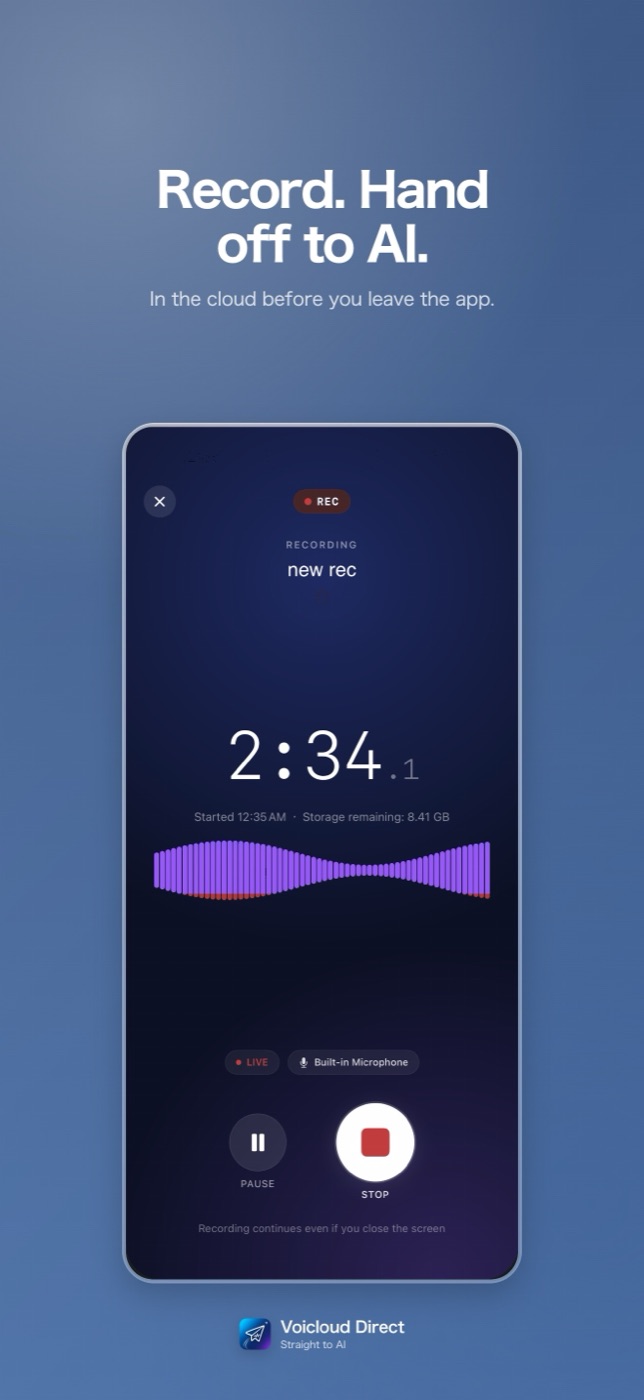
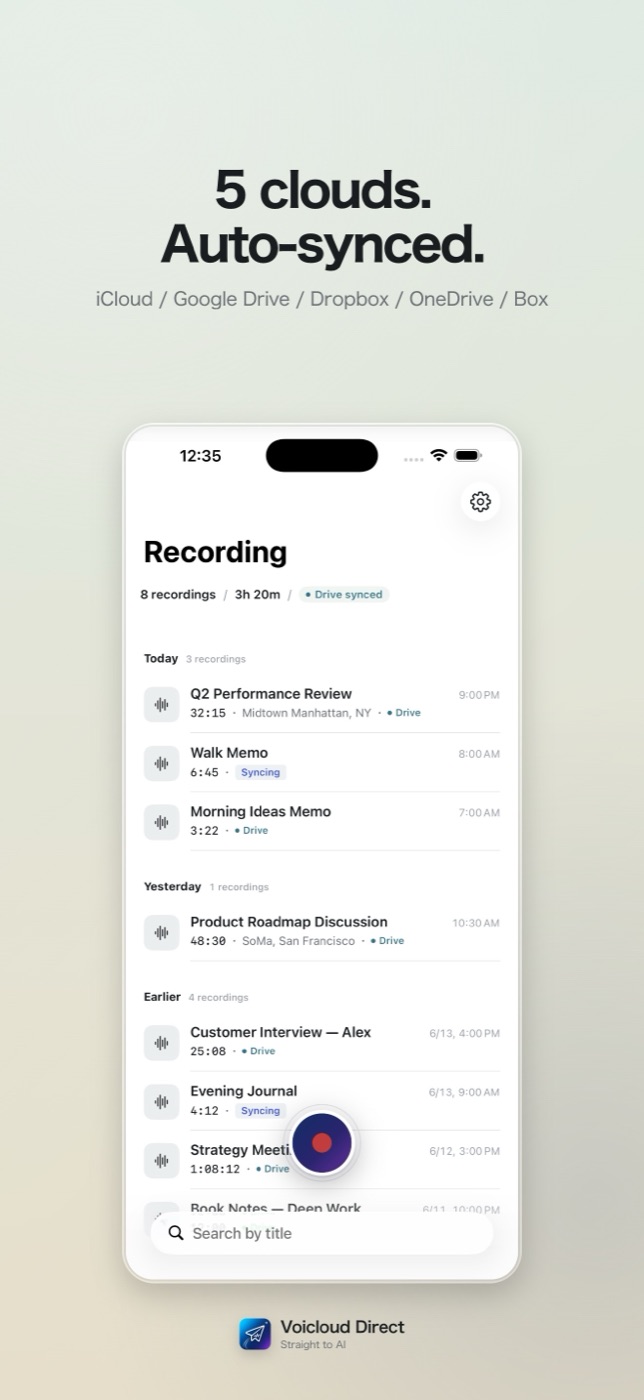
With an API key, audio goes straight from the phone to the AI service you chose; the key is stored in the device Keychain. With Gemini and Vertex AI you get speaker labels and timestamps, and can set the number of speakers. The summary prompt is editable, and "Trim" cuts off chatter at the start or end.
Requires iOS 18 or later. Free to download with a 3-day trial of every feature; after that, a one-time purchase keeps it going. No ads, no analytics. When the trial ends, playback, transcription, summaries and cloud sync of existing recordings keep working; only new recordings stop.
5. Troubleshooting
NotebookLM doesn't show up in the share sheet
Make sure the target app is installed and enabled in the share sheet. Adding it to Favorites puts it first.
Older recordings are missing from a cloud I connected later
Use "Sync" on each recording's detail screen to send past recordings too.
Speakers aren't separated in the transcript
Speaker labels come with Gemini and Vertex AI. Setting the number of speakers improves separation.
I'd rather not send audio anywhere
Then Voicloud for iPhone, which transcribes and summarizes on the device, is a better fit.
 Voicloud ·
 Voicloud Desktop ·
 Lumidepth Player VR ·