 Voicloud · Recording & transcription
How to transcribe meeting recordings on iPhone offline, without uploading audio
Short answer: If the audio must not leave your phone, pick an app that transcribes on the device. First check whether a service sends audio to its servers, then choose among on-device options by whether you also need speaker labels and summaries.
1. Check these first
- Are you allowed to record? Check your workplace's and the other side's rules, and get consent from the people in the meeting.
- Where does the service process audio? Many transcription services upload audio to their own servers. Look for "on-device" in the description or privacy policy.
- What do you need? Just text, or also who spoke when, or a summary?
2. Why on-device makes a difference
Recent iPhones are powerful enough to run large speech recognition models locally. That means transcription works without an internet connection, which makes it easier to handle recordings with confidential content. The trade-off is that the iPhone does the work, so long recordings take longer.
3. Options compared
| Method | Where audio goes | Speaker labels | Summary | Best for |
|---|---|---|---|---|
| Listen and type it yourself | Nowhere | By hand | By hand | Short recordings only |
| Cloud transcription service | Service's servers | Depends | Depends | Audio you are fine uploading |
| On-device app | Stays on the phone | Depends on app | Depends on app | Audio that must stay private |
4. Doing it on-device with Voicloud
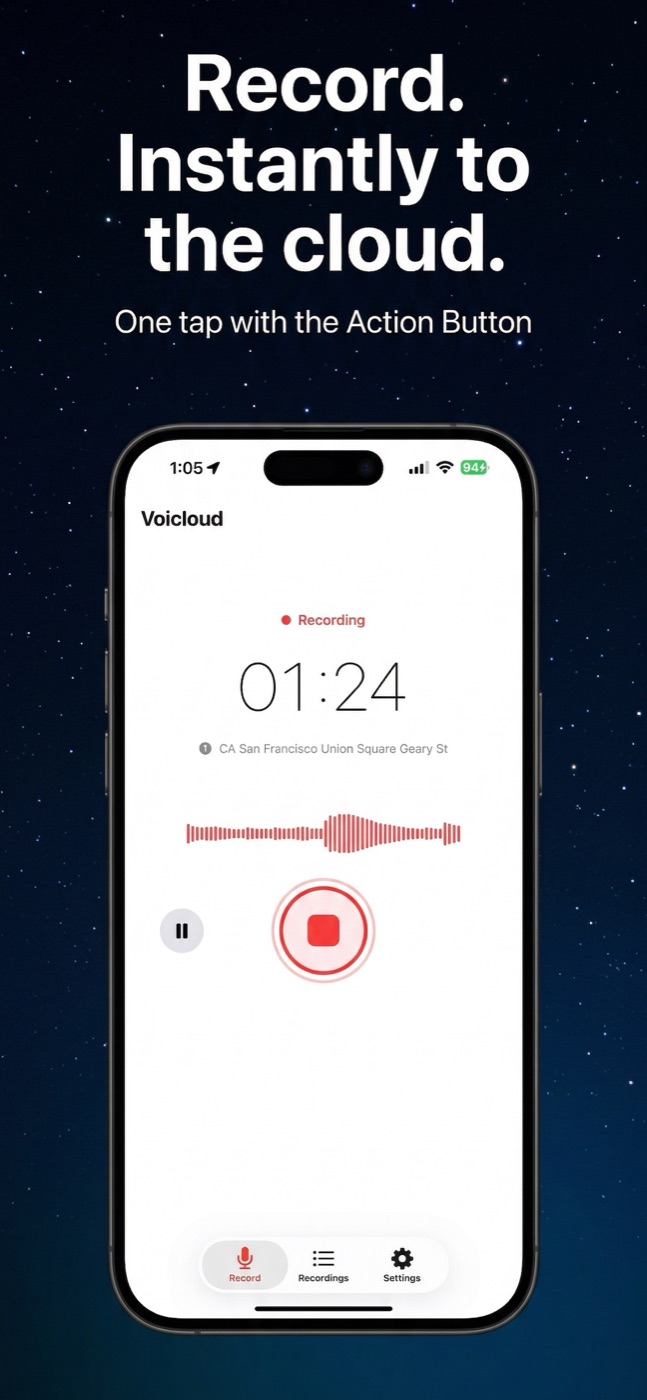
I built Voicloud, an iPhone voice recorder, for the third option. Recording, transcription, speaker identification and summary all run on the iPhone.
- Turn on transcription and summary in Settings (both are off at first).
- Start recording with the record button or the Action Button.
- When you stop, transcription (Whisper large-v3-turbo) and speaker identification run automatically.
- Apple's on-device AI writes a summary with headings and bullet points.
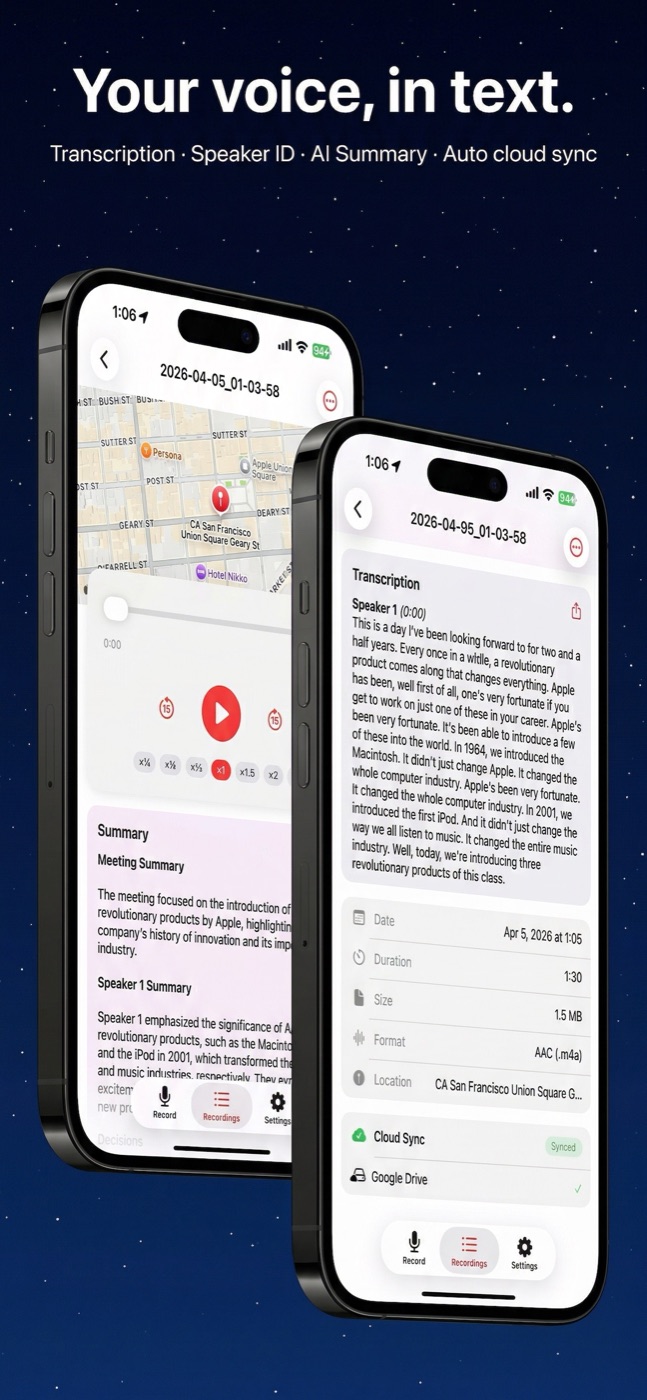
The spoken language is detected automatically, or you can set it in Settings; about 100 languages are supported. Audio, transcripts and summaries can upload directly to your Google Drive, Dropbox, OneDrive, Box or iCloud Drive, never through my servers.
Requires iOS 18 or later. Summaries need an Apple Intelligence–capable iPhone on iOS 26 or later. The app is free with ads and connects to one cloud service; Voicloud Premium, a one-time purchase, removes ads and unlocks all five clouds and calendar integration.
5. Troubleshooting
No summary appears
Summaries only work on Apple Intelligence–capable iPhones running iOS 26 or later. Also check that summary is turned on in Settings.
The transcript comes out in the wrong language
Set the spoken language in Settings. You can also pick a language for a single recording and transcribe it again.
I don't want ads in the free version
The free version uses Google AdMob, which may use device information for ads. Premium removes ads.
I want to hand recordings to NotebookLM or my own AI
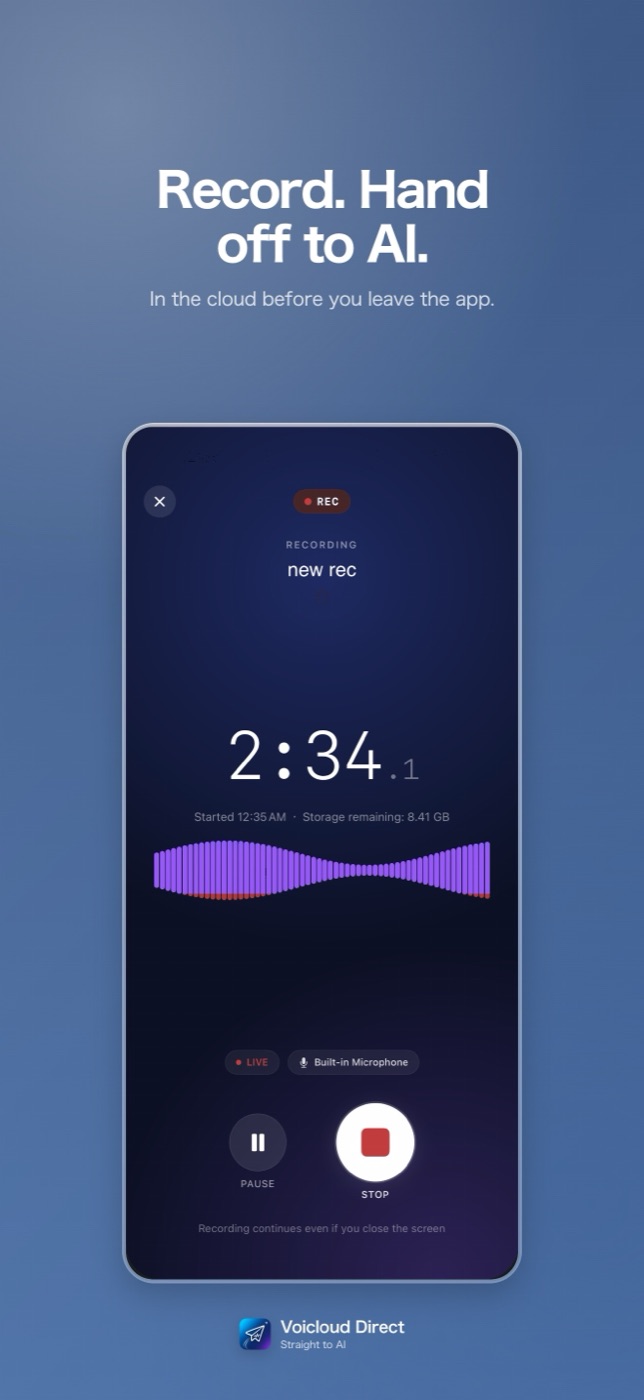
Voicloud Direct, from the same series, is built for that. For recording online meetings on a Mac, see Voicloud Desktop.
 Voicloud Direct ·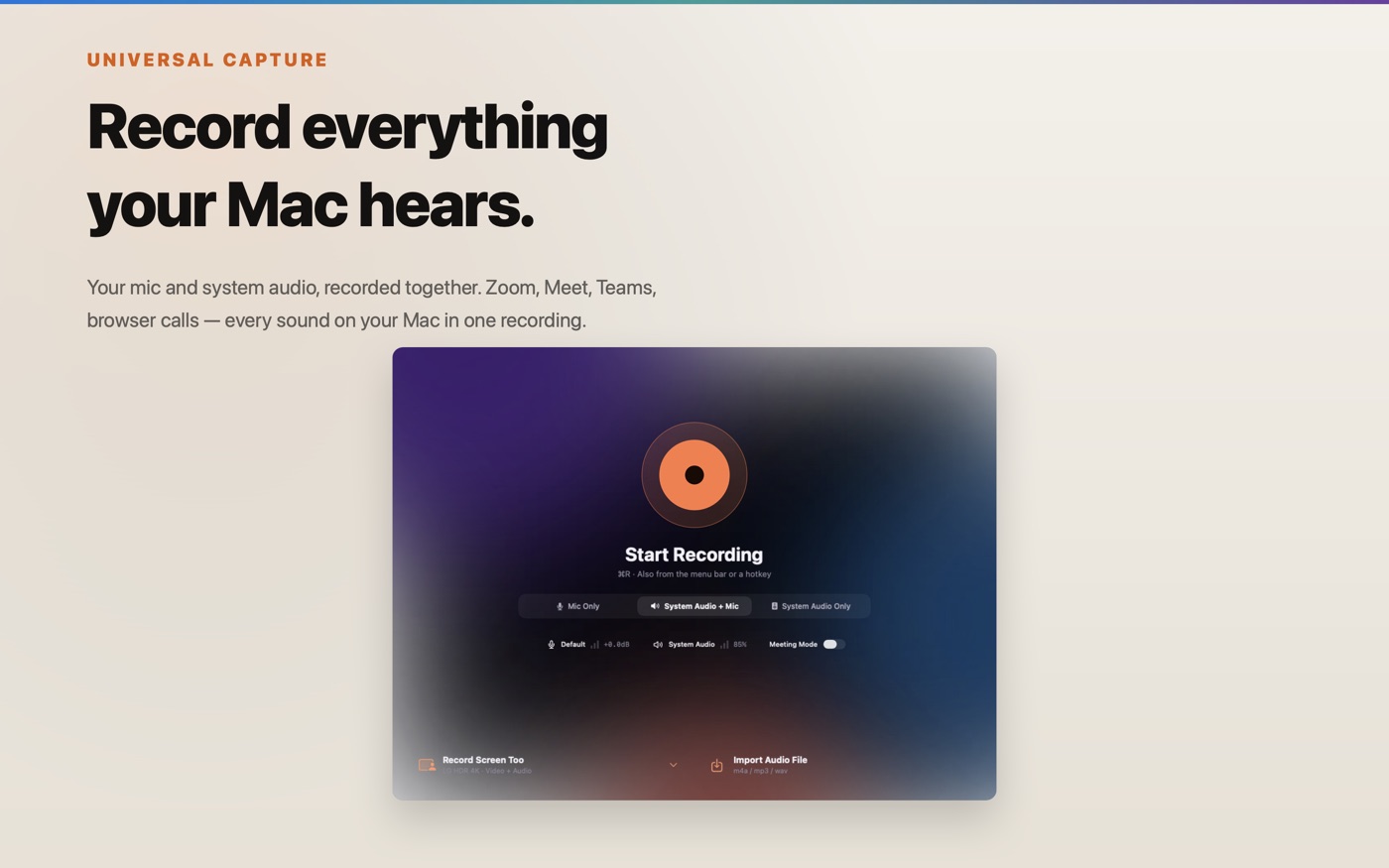
 Voicloud Desktop ·
 Lumidepth Player VR ·