 Sparklux Go · Watch videos
How to watch videos from a NAS or Mac on your iPhone without copying them
Short answer: Your iPhone can read videos on a NAS or Mac directly over SMB, the standard file-sharing protocol. Check that (1) sharing is turned on, (2) your iPhone is on the same Wi‑Fi, and (3) the app is allowed to access your local network. Then connect with the Files app or a video player that supports SMB, and you can play videos without copying them.
1. Check sharing and Wi‑Fi first
Before you connect, check these four things:
- On a Mac: in System Settings → General → Sharing, is "File Sharing" turned on, and is your video folder in the list of shared folders?
- On a NAS: in the NAS admin page, is SMB (Windows file sharing) enabled, and does your user have permission to read that folder?
- Same network: is your iPhone on the same home Wi‑Fi as the Mac or NAS? Devices at home aren't visible over cellular.
- Local network permission: did you tap "Allow" when the app first asked about your local network? If not, turn the app on in Settings → Privacy & Security → Local Network on your iPhone.
To connect, you need the name or IP address of the Mac or NAS, plus a user name and password for it.
2. Why you don't need to copy the video
Mac File Sharing and most NAS devices share files over the same protocol, SMB. If an iPhone app speaks SMB, it can browse your folders, open a video and play it while reading only the parts it needs. You don't have to copy the whole file to your iPhone.
However, the iPhone's built-in video playback can't play some formats, such as MKV, as is. Which formats play, and whether you can switch subtitles and audio tracks, depends on the app you use.
3. Ways to watch NAS videos on iPhone, compared
| Method | Effort | iPhone storage | Formats | Best for |
|---|---|---|---|---|
| Copy to iPhone, then watch | Copy every time | Uses the full file size | Only formats iOS plays natively | People who watch only a few videos |
| Files app → "Connect to Server" | Built in, nothing to install | Almost none | Only formats iOS plays natively | People who don't want another app |
| Run a media server (e.g. Jellyfin) | Server setup and upkeep | Almost none | Depends on server and app | Sharing with family or watching away from home |
| Video player app with SMB support | Install and connect | Almost none | Depends on the app (many handle MKV and subtitles) | Watching many formats straight from shared folders |
4. Using a video player: Sparklux Go
I built Sparklux Go, an iPhone and iPad player, for the fourth option. To connect to a Mac shared folder:
- In Sparklux Go, tap your Mac's name when it appears under "Network". If it doesn't appear, tap "Add Server" and enter the host name or IP address
- Enter your Mac user name and password, then tap "Connect"
- Browse the folders and tap the video you want to watch
A NAS connects the same way over SMB. For WebDAV, Jellyfin or DLNA / UPnP, go to "Add Server" → "Server Type". Passwords are stored only in this device's keychain.
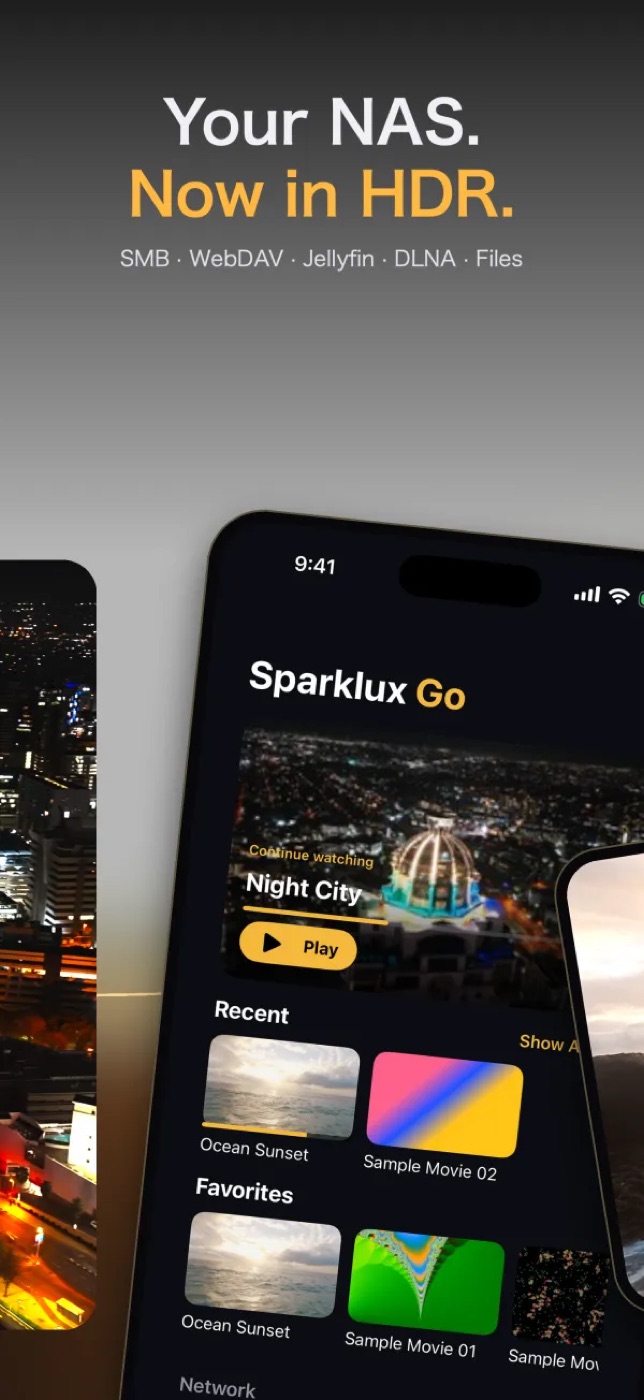
It plays MP4, MOV, M4V, HLS, MKV and AVI without conversion, and .srt or .ass subtitle files in the same folder are shown automatically. On HDR-capable screens (iPhone 12 or later, some iPad Pro models), it converts SDR video to HDR brightness. There are four presets, "Natural", "Vivid", "Brighter, as is" and "No conversion", and A/B compare shows the result next to the original. Videos smaller than your screen are upscaled to its resolution, and videos at 30 fps or below are smoothed up to 120 fps on ProMotion displays.

It requires iOS / iPadOS 26 or later. It's free to download, with a 3-day trial of every feature (you're never charged automatically). To keep using it, it's a one-time purchase of $3.99 in the US (prices vary by region), with no subscription and no ads.
5. Troubleshooting
My Mac or NAS doesn't show up
Check "Same network" and "Local network permission" in section 1. If it still doesn't appear, add it by IP address instead of by name; that often works. You can find your Mac's IP address in System Settings → Wi‑Fi → "Details" for the network you're on.
It won't connect even with the right password
For a Mac, use the user name and password you log in to the Mac with. For a NAS, use a user created on the NAS that has permission to read the folder. Also, Sparklux Go can't currently connect to shares that require SMB3 encryption.
Playback stops or freezes
This usually means the connection isn't fast enough. Try it closer to your router, or connect the NAS or Mac to the router with an Ethernet cable. The bigger the video (4K, for example), the more Wi‑Fi speed matters.
I want to watch YouTube or streaming services
Videos on streaming services aren't video files, so players made for NAS can't open them. Sparklux Go opens videos in shared folders, the Files app and your Photos library, plus direct links to video files (.mp4 / .mov / .m3u8).

 Sparklux ·
 Voicloud Direct ·
 Voicloud ·