 Sparklux · Watch videos
Videos look dim on your Mac's HDR display? What to check, and how to fix it
Short answer: If videos don't look bright on an HDR screen, the video is most likely SDR. Check (1) that your display is actually in HDR mode and (2) whether the video is SDR or HDR. If it is SDR, you can either convert it and save a new file, or use a player that converts it while it plays.
1. Check that your display can show HDR right now
HDR brightness is only available on:
- MacBook Pro (14-inch and 16-inch) with a Liquid Retina XDR display, and Pro Display XDR
- HDR-capable external monitors
Then check these three things:
- External monitor: in System Settings → Displays, is "High Dynamic Range" turned on for that monitor?
- MacBook Pro built-in display: is the display preset one that supports HDR (such as "Apple XDR Display")?
- Is brightness at maximum? On some models, maximum screen brightness leaves no headroom for HDR. Lower it a little and the HDR parts of the picture will stand out again.
2. Find out whether the video is SDR or HDR
Most videos you own are SDR. HDR videos are those shot in HDR (such as video from recent iPhones) or released as HDR versions.
To check, open the file in a free tool such as MediaInfo and look at the color information (transfer characteristics). PQ (HDR10, Dolby Vision) or HLG means HDR; BT.709 and similar means SDR.
3. Why SDR video looks dim on an HDR screen
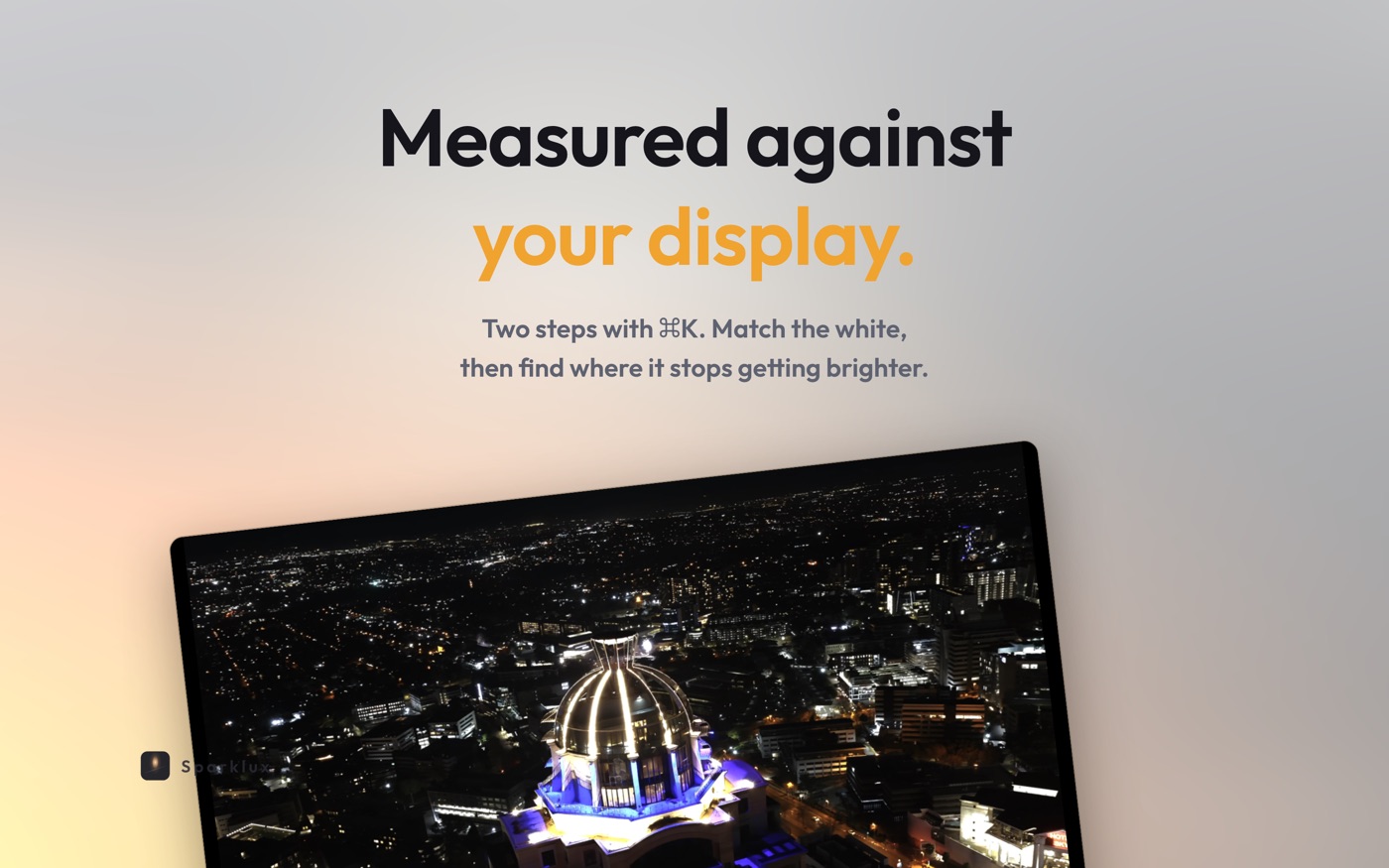
An HDR screen can show lights, sky and reflections far brighter than the white of a normal web page. HDR video carries that brightness information; SDR video does not. So SDR video is shown using only the lower band, and the upper band stays empty.
To watch it brighter, the video has to be expanded from SDR to HDR: decide which parts become bright highlights, while keeping skin tones and mid-tones as they are. This is often called inverse tone mapping.
4. Ways to watch SDR video brighter, compared
| Method | Effort | Storage | Changing the look | Best for |
|---|---|---|---|---|
| Find an HDR version | Searching; often none exists | Unchanged | Not possible | Titles that have an HDR release |
| Convert to HDR in a video editor and save | Conversion time for every video | Grows with each file | Re-convert | A few videos you want to finish carefully |
| A player that converts while playing | Just open the file | No change | Switch on the fly | Watching your whole library brighter |
5. Converting while playing: how it works in Sparklux
I built a Mac player called Sparklux for the third method. The steps:
- Drag and drop a video onto Sparklux.
- Pick a look: Subtle, Cinema, Natural, Vivid, Real or Brighter, as is. If you pick nothing, the default is tuned to look right from the start.
- Not sure? Use A/B comparison to show two presets side by side.
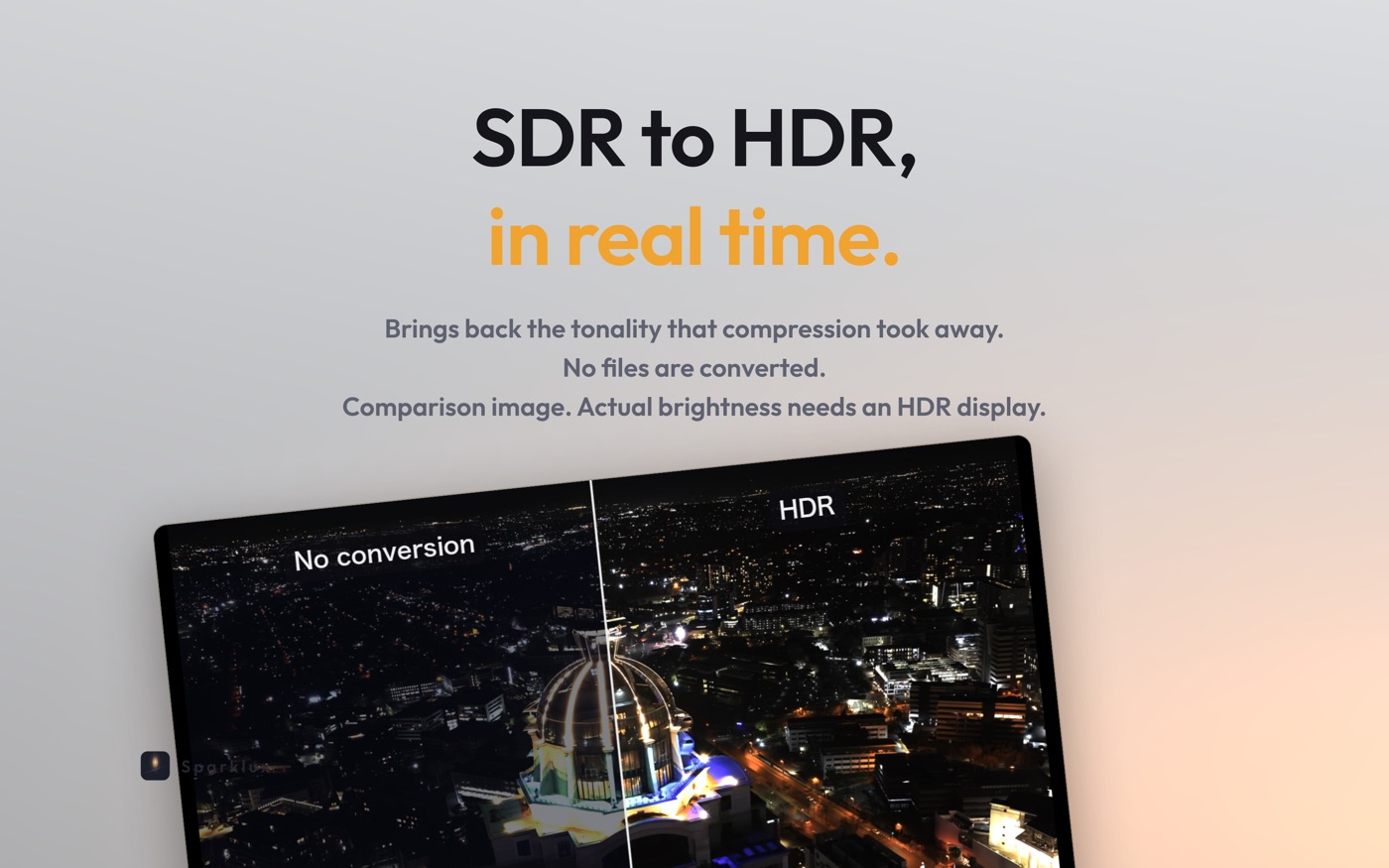
Because HDR brightness varies a lot between displays, start with the two-step calibration (⌘K): just find, by eye, the point that matches white and the point beyond which it gets no brighter. Values are remembered per display.
HDR10, HLG and Dolby Vision Profile 8 videos are shown as they are, untouched. 1080p video is upscaled to 4K with MetalFX.
It is a one-time purchase: after a 7-day free trial, buy once and use it on every Mac with the same Apple ID.
6. Troubleshooting
Nothing gets brighter after converting
Recheck section 1, especially screen brightness at maximum and "High Dynamic Range" on external monitors. Sparklux's start screen shows whether the connected display can show HDR right now.
Everything looks washed out or too bright
Try the Subtle or Natural preset. Redoing the ⌘K calibration matches the brightness to that display.
Can I make Netflix and other streaming services brighter too?
Protected streaming services such as Netflix, Prime Video and Disney+ cannot be converted by any player. Sparklux works on video files you have, direct URLs, HLS and videos on network shares.
 Sparklux Go ·
 Voicloud Direct ·
 Voicloud ·