 Sparklux Library · Organize videos
How to organize thousands of videos on a Mac with tags, without moving your files
Short answer: For a large video collection, let folders decide where videos live, and use tags for the ways you want to find them. Pick a method that lists your videos where they already are and lets you tag them, so you don't have to rebuild folders or move files.
1. First, check where your videos are
Before choosing a method, check these three things:
- How many locations? Are your videos only on your Mac, or also spread across external drives, a NAS (network share) or iCloud Drive?
- How many videos? A few hundred can be managed with folders alone. Once you pass a few thousand, folders alone get hard to search.
- Can you move them? If other apps or family members use the same folders, it's safer not to rename or move anything.
Videos on external drives or a NAS disappear when they're not connected. Choose a method that keeps your tags and lists while they're offline.
2. Why folders alone stop working
In folders, each video can live in only one place. If you sort by "2024 summer break", finding "everything shot in Kyoto" or "every video with the kids" means opening folder after folder. Rebuild your folders around a new scheme, and the old way of finding things breaks.
With tags, one video can carry as many labels as you like: Family, Trips, Kyoto. Keep folders for where videos live and use tags for how you find them, and you can organize without moving a single file.
3. Ways to organize videos on a Mac, compared
| Method | Effort | Where videos live | Finding videos | Best for |
|---|---|---|---|---|
| Finder folders only | Create folders and move files | Wherever you decide | Only one way to sort | Small collections |
| Finder tags | Tag files one by one | Where they are now | Search by tag; tags are attached to the files | People who don't want another app |
| Import into the Photos app | Importing required | Usually copied into the Photos library | Search by date, people and more | Mostly videos shot on iPhone |
| Media server (e.g. Jellyfin) | Server setup and upkeep | Where they are now | Strong for movies and TV shows | Watching on a TV or family devices |
| An app that tags videos in place | Just add folders | Where they are now | Depends on the app | Large collections of your own videos |
4. Tagging videos in place: Sparklux Library
I built Sparklux Library, a Mac app, for the fifth option. Here's how it works:
- Click "Add Folder…" (⌘O) and choose a folder with videos. Videos appear in the list as they're found
- Select videos and press ⌘T (Add Tag…). Type a name and press Return. Use "/", as in Places/Kyoto, to nest tags
- Narrow the list with tags in the sidebar or with the resolution, HDR and duration chips, and keep filters you use often with "+ Save as Shelf"
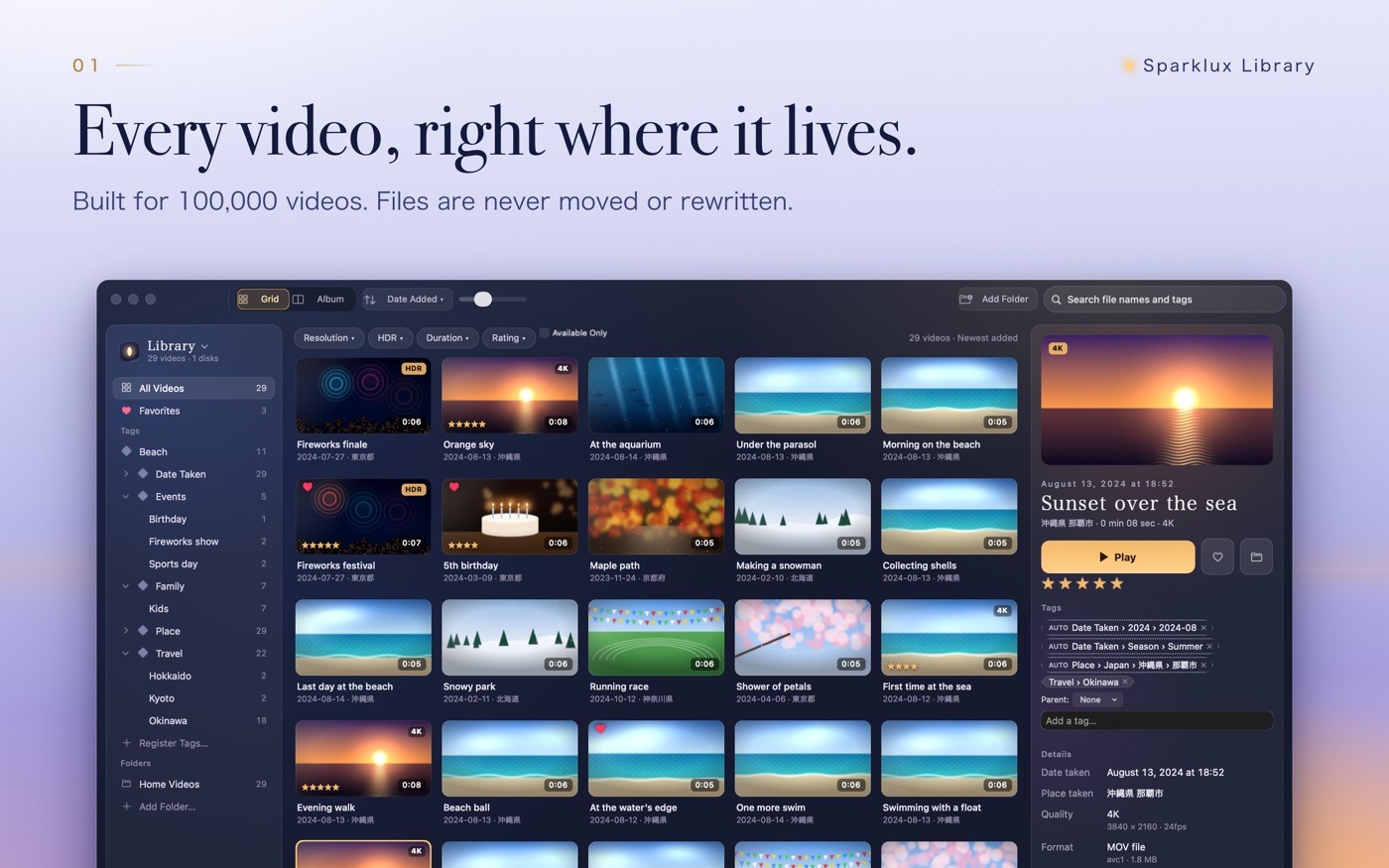
Your video files are never moved or modified. Tags aren't written to the files or to Finder tags; they're stored only inside the app. Tags belong to the contents of a video, so they stay when you move a video to another folder. When a drive or share isn't connected, its videos show as "Offline" and come back when you reconnect.
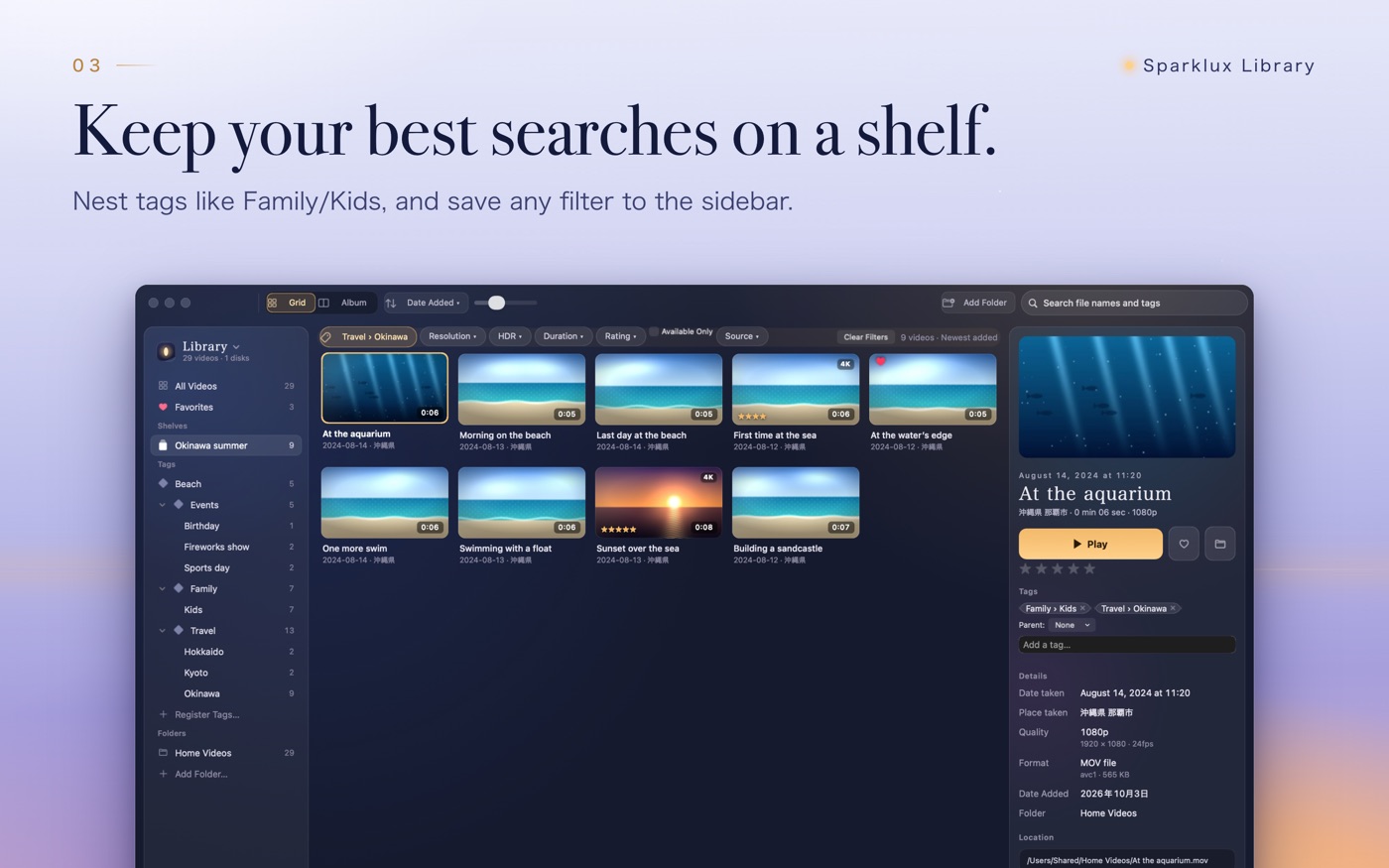
You can also tag 5 videos by hand and let the app tag similar videos automatically. All of this runs on your Mac. The list stays responsive even with more than 100,000 videos.
It requires macOS 14 or later on Apple silicon (M1 Pro or better, M2 or later) and supports MP4 / MOV / M4V / MKV. After a 3-day free trial, a one-time in-app purchase unlocks it on every Mac with the same Apple ID; the price is shown in the App Store. Even after the trial ends, browsing, tagging and search keep working.
5. Troubleshooting
A video shows "Not Found"
The video isn't where it was. If you moved it within an added folder, the next scan finds it automatically. If you moved a whole folder to another disk, right-click it in the sidebar and choose "Locate Folder…".
Videos on an external drive disappeared
When a drive or share isn't connected, its videos show as "Offline". They come back when you reconnect, and your tags are kept.
I want to play tagged videos in another player
Select videos and choose "Open in Another App" (⇧⌘O) to open them in the video player you usually use. "Show in Finder" (⌥⌘R) selects them in Finder.
Some folders can't be added
Folders inside another app's storage, in a temporary location or inside a package can't be added. Move the videos into a regular folder first.

 Voicloud Direct ·
 Voicloud ·
 Voicloud Desktop ·